Are you struggling with sound problems on your HP laptop? Whether your speakers are silent, your headphones aren’t working, or your audio is crackling, this guide will walk you through the most effective solutions. Let’s get your sound back on track!
🧩 Common Causes of Audio Problems on HP Laptops
Before diving into fixes, it’s helpful to understand what might be causing the issue:
• Incorrect output device selected
• Muted or low volume settings
• Outdated or corrupted audio drivers
• Faulty headphones or speakers
• Windows or BIOS updates interfering with sound settings
✅ Step-by-Step Guide to Troubleshoot HP Laptop Audio Issues
1. Check Volume and Output Device
• Click the speaker icon in the bottom-right taskbar.
• Make sure the volume is turned up and not muted.
• Click the arrow next to the speaker icon to select the correct playback device (e.g., “Speakers – Realtek Audio”).
2. Run the Windows Audio Troubleshooter
• Press Windows + I to open Settings.
• Navigate to System > Sound > Troubleshoot.
• Follow the on-screen instructions to detect and fix sound issues.
3. Use HP Support Assistant’s Audio Check
• Download or open HP Support Assistant.
• Run the Audio Check tool to diagnose and automatically fix common sound problems.
4. Update or Reinstall Audio Drivers
• Press Windows + X and select Device Manager.
• Expand Sound, video and game controllers.
• Right-click your audio device and choose Update driver.
• If that doesn’t work, choose Uninstall device, then restart your laptop. Windows will reinstall the driver automatically.
5. Verify Sound Settings in Control Panel
• Go to Control Panel > Hardware and Sound > Sound.
• Under the Playback tab, ensure the correct device is set as Default.
• Click Properties > Levels to check volume and mute status.
6. Test External Audio Devices
• Try different headphones or speakers to rule out hardware issues.
• Ensure cables are securely connected and ports are clean.
7. Install Windows Updates
• Go to Settings > Windows Update and install any pending updates.
• Updates often include fixes for driver and system compatibility issues.
🛠️ Bonus Tip: Check BIOS Settings
Sometimes, audio issues stem from BIOS settings:
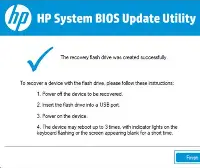
• Restart your laptop and press Esc or F10 to enter BIOS.
• Look for audio-related settings and ensure they’re enabled.
📌 Final Thoughts
Troubleshooting audio issues on an HP laptop doesn’t have to be complicated. By following these steps, you can resolve most sound problems quickly. If the issue persists, consider contacting HP Support or visiting an authorized service center.