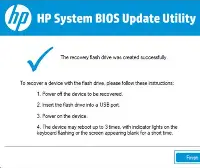
Updating your BIOS (Basic Input Output System) can improve system stability, fix bugs, and enhance hardware compatibility. But it’s also a sensitive process—installing the wrong update can cause serious issues. This guide walks you through the safest and most effective ways to update the BIOS on HP machines.
🔍 Why Update Your BIOS?
• Fix hardware compatibility issues
• Improve system performance
• Resolve boot or power problems
• Support new operating systems or features
🛠️ Method 1: Update BIOS Using HP Support Assistant
This is the easiest and safest method for most users.
Steps:
1. Open HP Support Assistant
• Search for “HP Support Assistant” in the Windows Start menu.
• If not installed, download it from HP’s official site.
2. Check for Updates
• Go to the My devices tab.
• Click Updates and look for a BIOS update.
3. Download and Install
• If a BIOS update is listed, check the box and click Download and install.
• Follow the on-screen instructions and restart your computer when prompted.
Note: HP Support Assistant automatically detects your model and ensures compatibility.
🛠️ Method 2: Update BIOS Manually via HP Website
Use this method if HP Support Assistant doesn’t show a BIOS update.
Steps:
1. Find Your Current BIOS Version
• Press Windows + R, type , and press Enter.
• Look for BIOS Version/Date in the System Information window.
2. Visit HP’s Support Website
• Go to HP Drivers & Downloads.
• Enter your device model or let HP auto-detect it.
3. Download the BIOS Update
• Under the BIOS category, download the latest version compatible with your system.
4. Install the Update
• Run the downloaded file and follow the instructions.
• Your system will restart and apply the update.
Important: Do not turn off your computer during the update process.
⚠️ Precautions Before Updating BIOS
• Backup your data in case something goes wrong.
• Ensure your laptop is plugged in to avoid power loss.
• Close all applications before starting the update.
• Use only official HP tools and downloads to avoid malware or incorrect updates.
🧩 Final Thoughts
Updating your BIOS can unlock better performance and fix persistent issues—but it must be done carefully. Whether you use HP Support Assistant or download manually, always verify your model and BIOS version first. If you're unsure, consult HP Support or a certified technician.
Would you like a checklist or printable guide to keep these